Adding another User / Buddy / Tank sitter
In this Get Started Guide, we will go over how to be added as an additional user to an existing Apex connected to Apex Fusion. The applications of this could be a service company monitoring your system, a friend watching your tank while you are out of town, or even allowing another user to help you with setting up and configuring your Apex. You don't need an Apex System to have an Apex Fusion account, just follow the steps below to get started.
- Creating an Apex Fusion Account
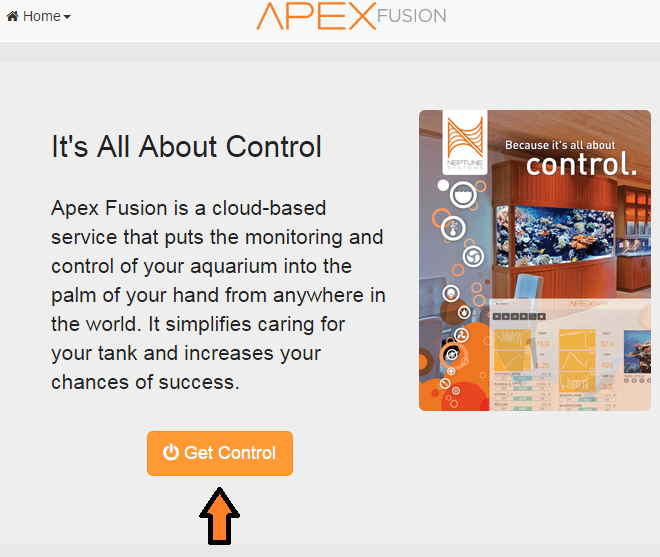
NOTE: If you have already created your account and received an activation email, skip to "Activating an Apex Fusion Account." - The first step to getting started with Apex Fusion is to create an account. To do this, navigate to http://apexfusion.com using your Internet Browser, then click on "Get Control."
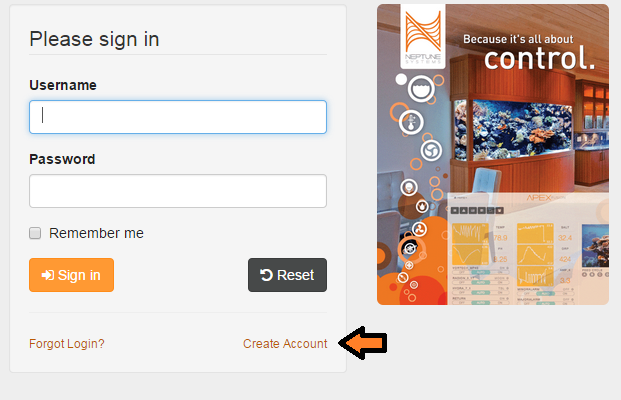
- Next, you'll click on “Create Account”
-
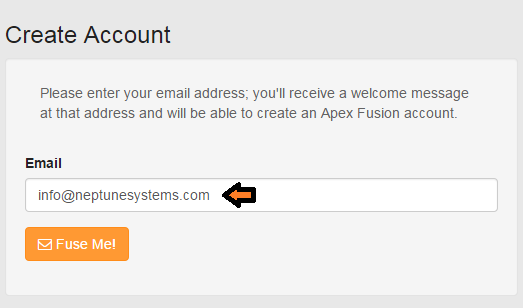
Now, enter the email address you would like to use for your Apex Fusion account, and then click "Fuse Me!"
- Activating an Apex Fusion Account
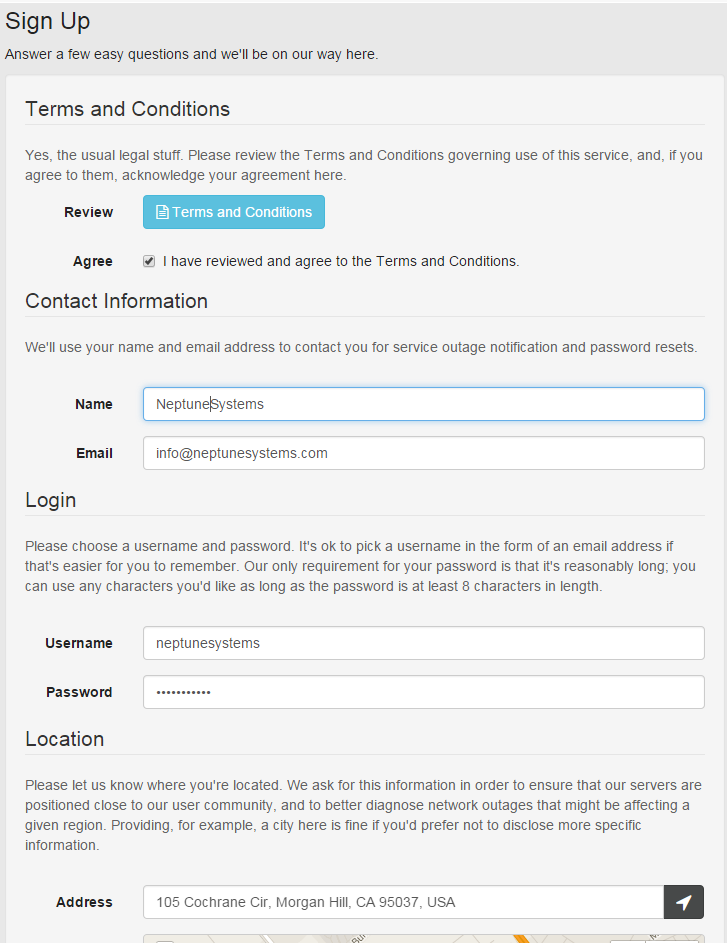
- That you must review and accept the Terms and Conditions
- Your “username” is not an email address
- We request your location simply to be able to better diagnose network outages that may affect a give region.
- To activate your account, please go log into the email account you used to create your Apex Fusion account
- In your inbox, you will see an email entitled "Apex Fusion Invitation." One of those links brought you to this Get Started Guide, and the other will begin your account activation.
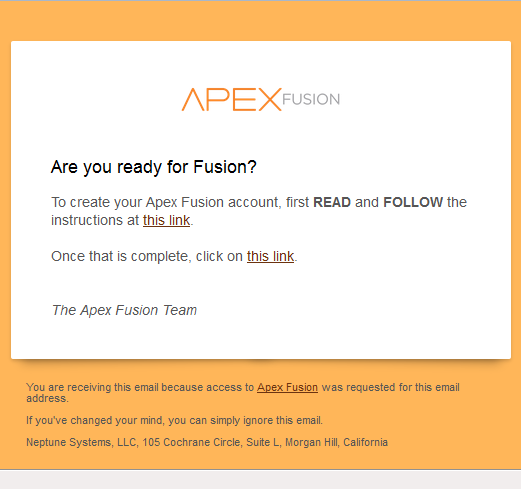
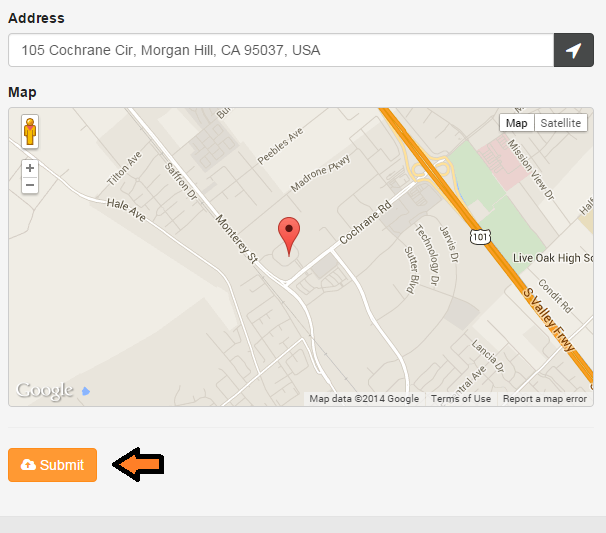
- Click on the "Activation Link." This will bring you to the account sign up page. Please fill this page out appropriately. Please Note:
- After filling out the correct information, then click "Submit," and your account will have been successfully created.
-
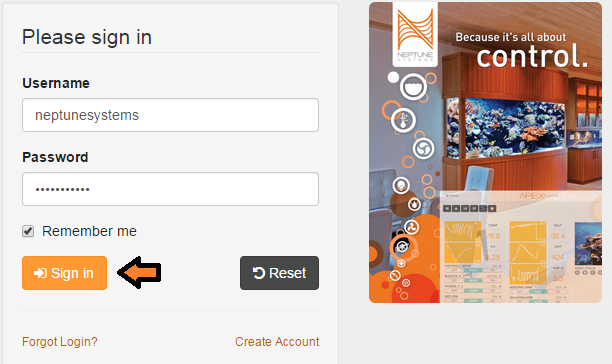
Now log into your Apex Fusion account
- Authorizing a new user on an Apex connected to Apex Fusion
- To be added to an Apex that is already connected to Apex Fusion, the user who is the “owner” of that Apex will need to authorize you and your level of access.
- Please email, text, or communicate your username to the “owner” of that Apex. I.e., "I created an Apex Fusion account. My username is XXXXXX. Please authorize me."
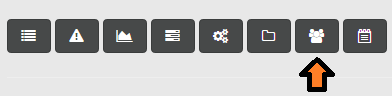
- The owner will then need to select on the “Authorizations” Icon on their Apex Fusion Dashboard
-
Click on the “Add User” Icon in the top right-hand corner

-
And add your username with the appropriate level of permission.
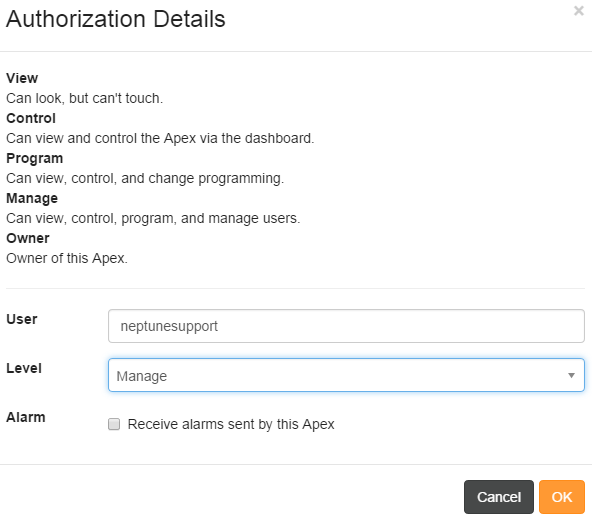
-
After the owner has done this, you should be able to refresh your Apex Fusion page and see the newly added Apex to your list

This concludes the Get Started on Apex Fusion. This is simply an overview of how to activate your Apex Fusion account, and getting connected to another user's Apex. For a more in depth view of using Apex Fusion or setting up an Apex System or Module, then please refer to the Get Started Page and select your system or module.